Your first collection
By the end of this page you will have a folder of finished, numbered assets on your disk. It takes about twenty minutes, and you will draw two simple shapes — no art skill needed.
If you have not looked at the demo CookBook yet, do that first: it is one click and it shows you the finished shape of what this page builds up to.
We will build the beginning of a collection called Vapor Pets.
1. Make a CookBook
A CookBook is your whole project in one file.
On the opening screen, click New CookBook. Fill it in like this:
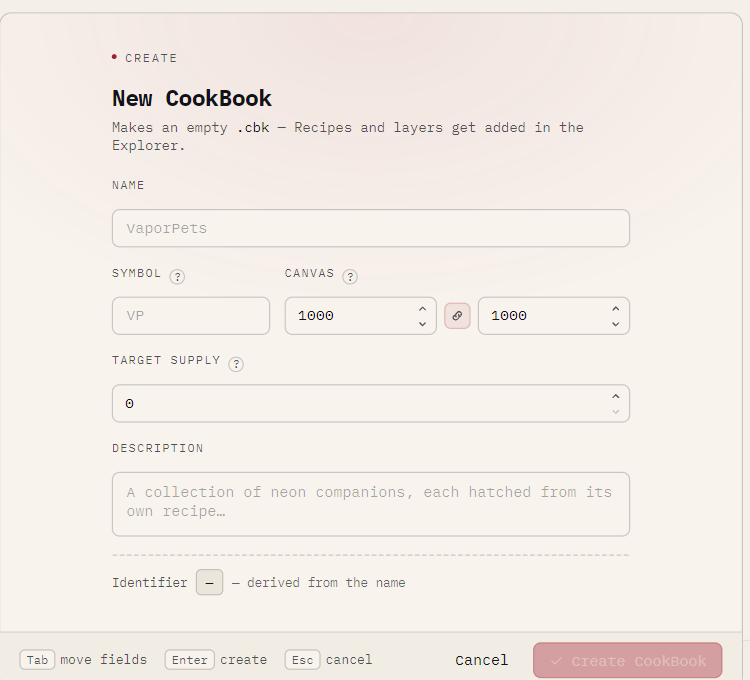
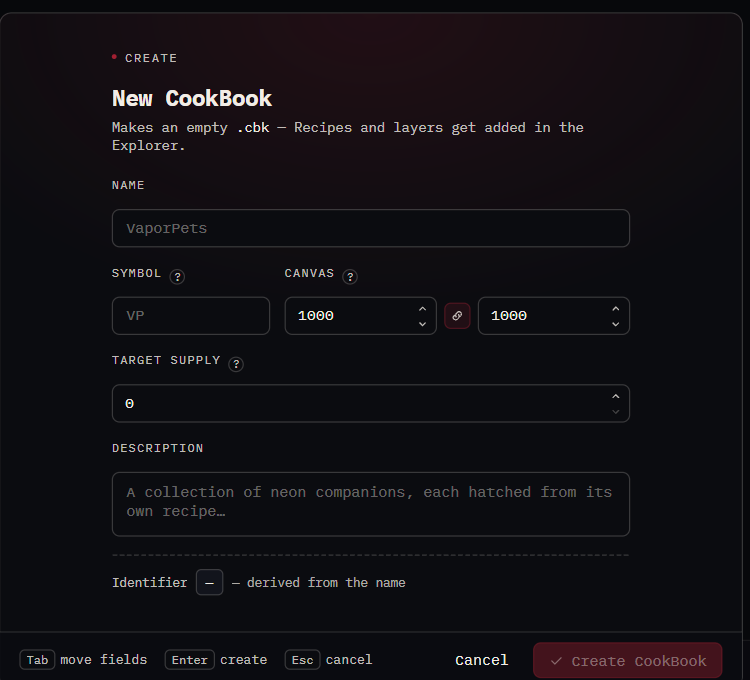
- Name —
Vapor Pets - Symbol —
VP, a short code for the collection - Canvas —
64by64. Every drawing in this project will be exactly this size.
Leave Target supply and Description alone. Click Create CookBook and choose where to save it.
The canvas size is permanent
You cannot change it later, and every drawing is checked against it. 64×64 is a good size to learn on; a real collection is often 512×512 or 1000×1000.
2. Unlock editing
The Explorer opens with your empty book. Look at the top right: it says read-only, and the status bar at the bottom says editing is locked.
Click the read-only chip itself. It turns carmine and reads editing.
This lock exists so you cannot rearrange a book by accident. You will use it every session.
3. Add a Recipe
A Recipe is one type of character. A book can hold several — a Cat and a Fox, say — and each asset is rolled from one of them.
With Vapor Pets selected in the tree on the left, click Add recipe. Name it Cat.
4. Add a layer
An Ingredient is one layer — one row of the stack.
Select Cat in the tree, then click Add ingredient. Name it Background and leave its kind as
Dynamic.
Dynamic means you draw it in gray and nfty picks a color for it on every asset. That is where a collection's variety comes from. The other two kinds are covered in The three kinds of layer.
5. Draw two options for it
Select Background in the tree, then click the pencil button on its panel. The Ingredient Editor opens.
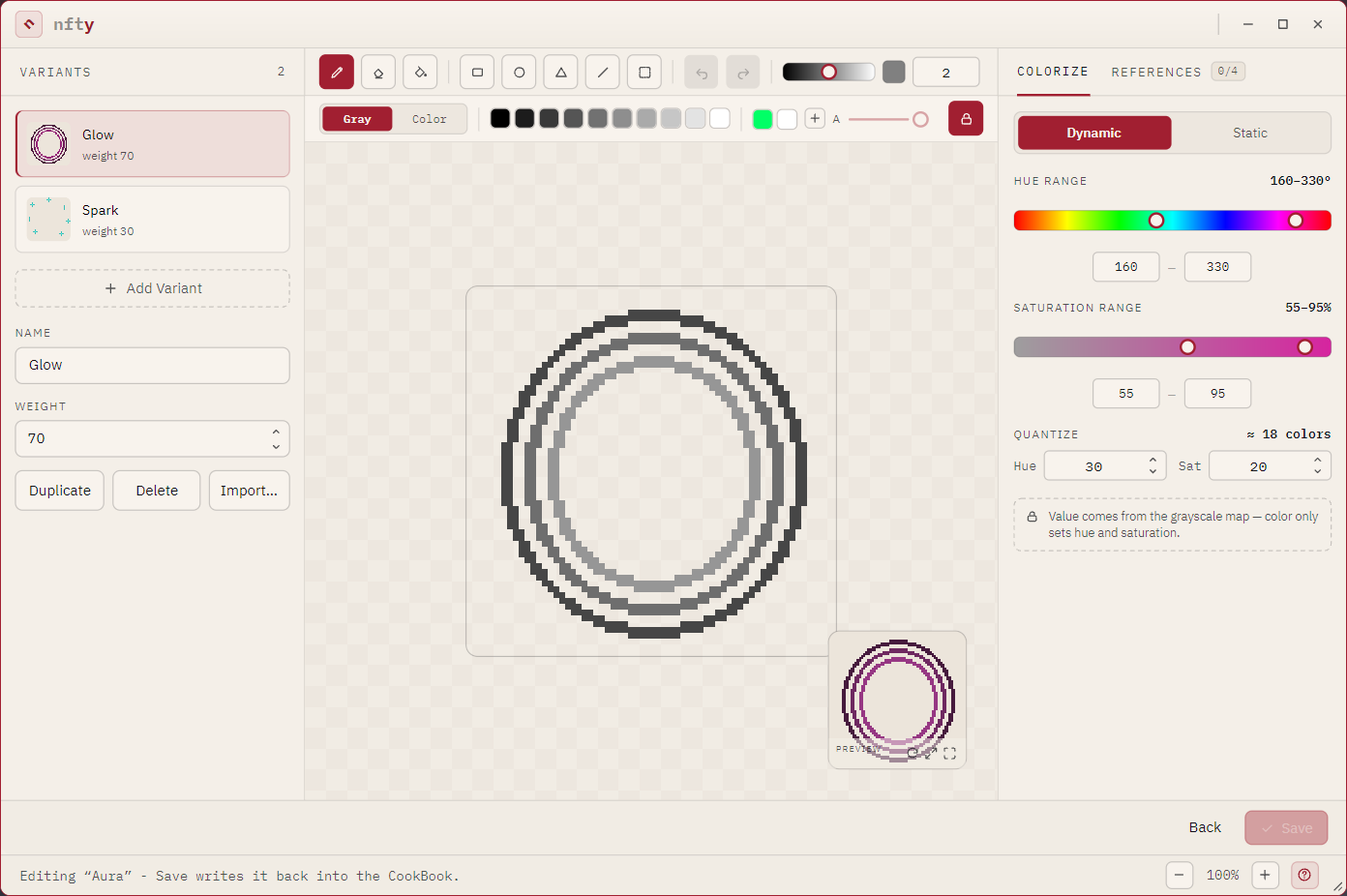
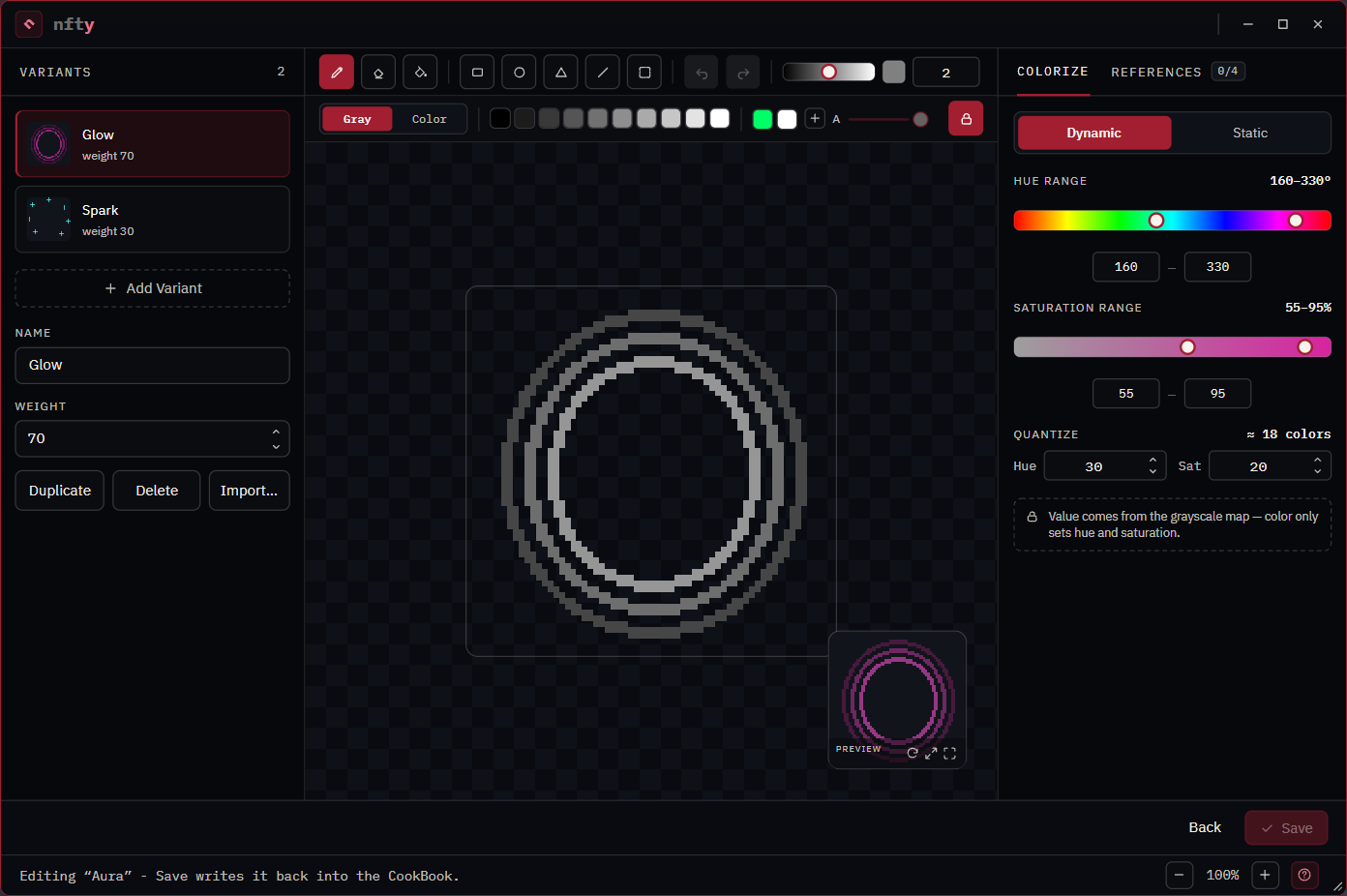
Draw the first option:
- Click the flood fill tool — the third icon, a paint drop.
- Click a mid-gray swatch in the strip under the tools.
- Click anywhere on the canvas. The whole canvas fills.
Now the second option:
- Click + Add Variant on the left. You get a fresh empty canvas.
- Fill it the same way, but pick a much lighter gray this time.
Two variants, two brightnesses. Because this is a Dynamic layer, the brightness you paint is lightness only — nfty supplies the hue later, so these will not be two grays in the output, they will be a dark and a light version of whatever color each asset rolls.
Click Save at the bottom right, then Back.
6. Check what it can make
Click Vapor Pets at the top of the tree. The panel shows the book's numbers:
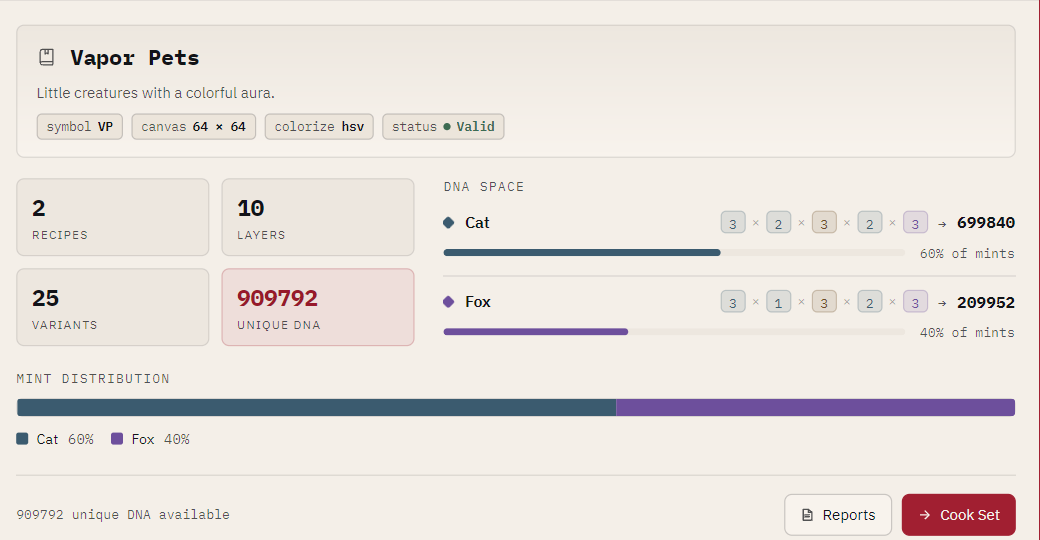
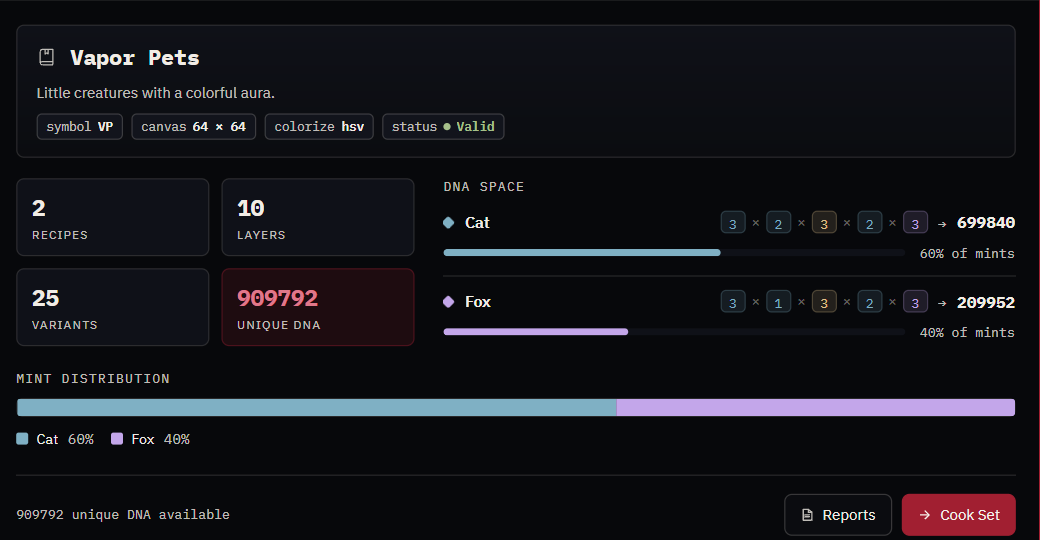
The number that matters before cooking is UNIQUE DNA — how many genuinely different assets this book can produce. With one Dynamic layer and two variants it is already in the hundreds, because each asset also rolls its own color.
The screenshot is ahead of you
That panel is the finished Vapor Pets, with five layers and two Recipes. Yours will show smaller numbers. The layout is the same.
7. Cook it
Click Cook Set.
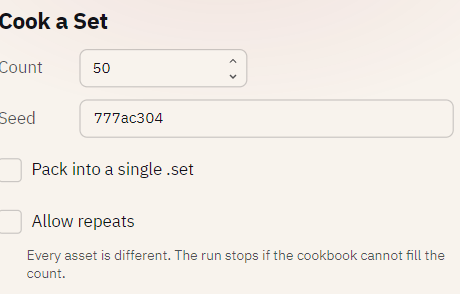
- Count — how many assets to make. Try
50for a first run; the screenshot shows the finished Vapor Pets at 500. - Seed — any word. It arrives pre-filled with a random one; type something you will remember,
like
launch. The same book and the same seed always produce the same collection. - Leave Pack into a single .set unchecked so you get a plain folder you can look through.
Click Cook, then choose an empty folder to write into.
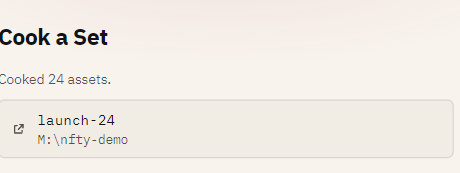
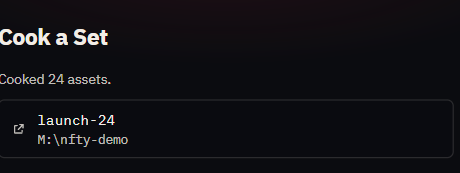
Click the folder to open it. Inside:
images/— your assets, numbered0001.pngupwardmetadata/— one JSON file per asset, in the format marketplaces expectnfty/— a richer JSON file per asset: its fingerprint, its seed, its rarity, the exact color each layer rolledset.json— the collection as a whole
You have a collection
Fifty assets, each provably distinct, from two drawings.
They are two flat rectangles, so it is not much to look at yet — that is the next page's job. But everything after this is the same six steps with more layers in them.
Next: Draw your first layer →