The viewer
The viewer is a separate window for looking at one asset, model or file big, beside your other work: the picture in 2D, the model in 3D, or both side by side. It can follow the page that opened it live, or hold its own copy.
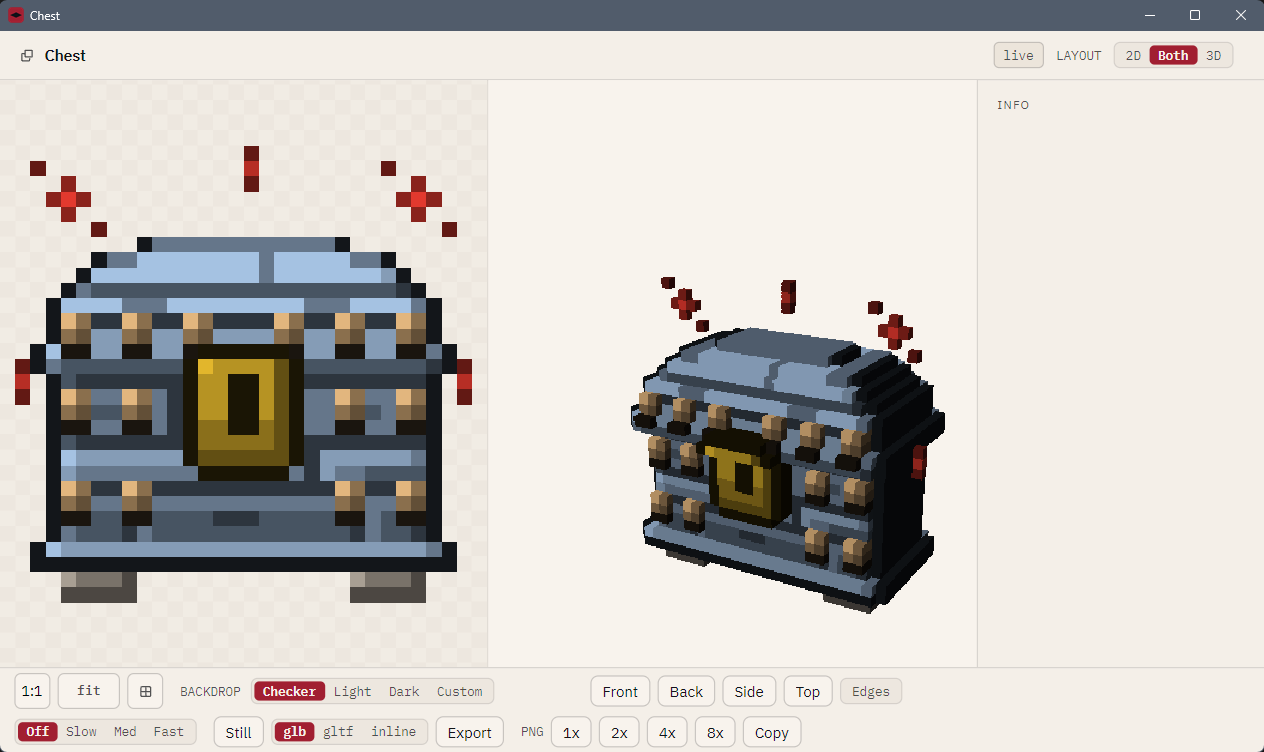
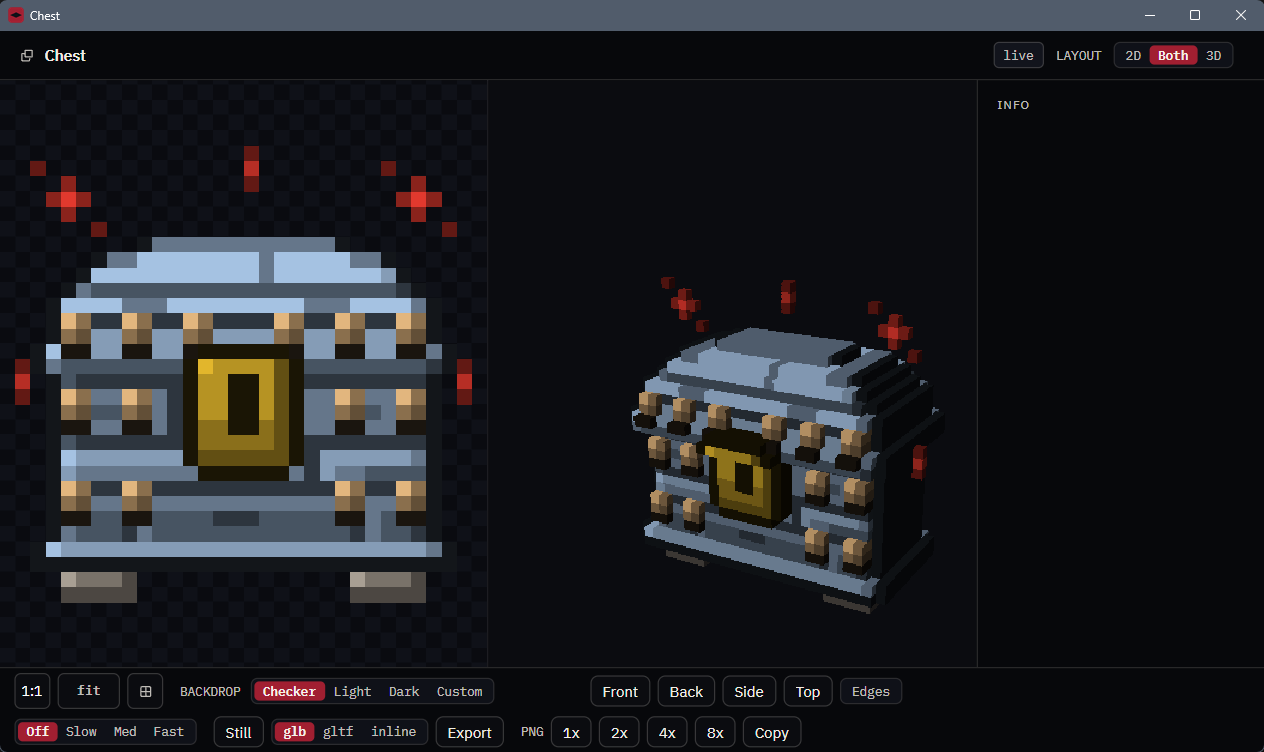
Open it
| From | How |
|---|---|
| The Rise page, Ingredient Editor, Set browser or inspector | The pop-out button. On the Rise page you can also Ctrl-click or middle-click the canvas or the 3D tile. |
| The tree or a Recipe's layer table | Right-click a row and choose Open in viewer, or Ctrl-click or middle-click it. A Recipe opens one roll. |
| A Set browser tile | Ctrl-click or middle-click it. |
| Any file | Open in viewer… on the opening screen. |
| File Explorer (Windows) | Double-click, once file types are registered: see Open files with nfty on Windows. |
| A terminal or shortcut | Nfty.Desktop --viewer "<file>" opens the viewer alone, with no app window. |
On macOS, Ctrl-click is a right click; use middle-click or the pop-out button.
The viewer reads .cbk, .rcp, .igt, .set (or a Set folder), .tin, .mnu, .ktn, .png,
.jpg, .jpeg, .glb and .gltf models, and an asset's metadata .json. An archive opens as a
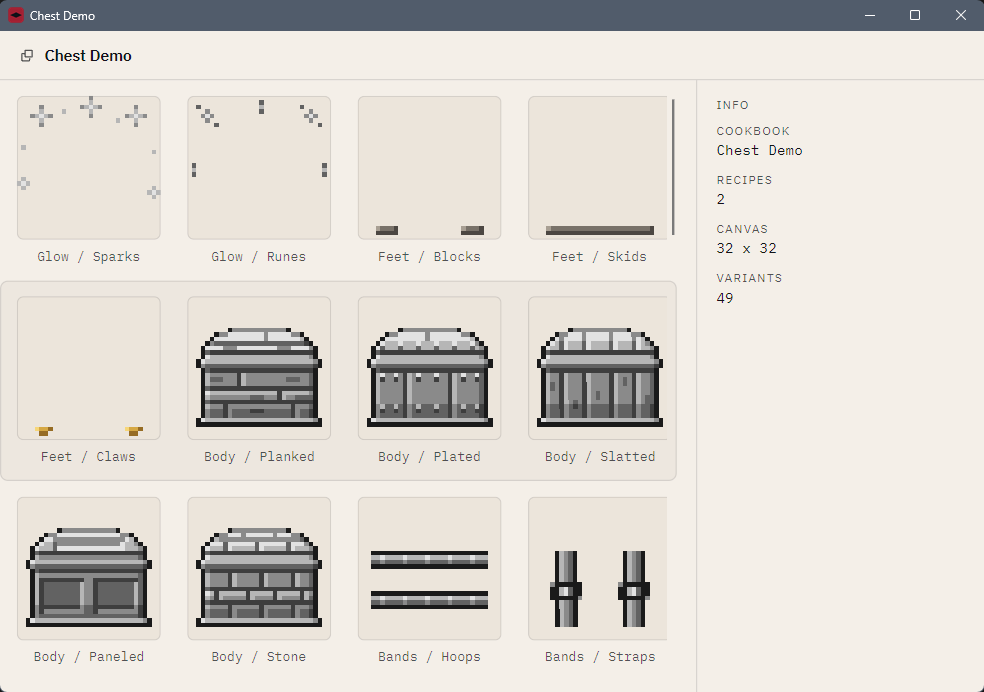
gallery of tiles; click a tile to open that one in its own viewer. A Set asset shows its model when
the Set carries one or the CookBook that cooked it can be found. A .tin asks for its passphrase first.
Live or snapshot
The badge beside the title says which:
- live: following the Rise page or Ingredient Editor that opened it. Paint, and the viewer redraws.
- snapshot: the viewer holds its own copy. You can close or save the book underneath and it still shows what you opened. A live viewer becomes a snapshot when its page closes.
Controls
| Area | Controls |
|---|---|
| Layout (top right) | 2D, Both or 3D. Keys 1 2 3. |
| 2D | Wheel zooms about the pointer; left- or middle-drag pans; fit (or 0) resets; 1:1 shows one art pixel per screen pixel; the grid button draws the art's pixel lines. Backdrop: Checker, Light, Dark or Custom (#RRGGBB). |
| 3D | Drag orbits, right- or middle-drag pans, wheel zooms, double-click resets. With the 3D half focused, the arrow keys orbit, + / - zoom and Home resets. Front / Back / Side / Top set the camera; Edges outlines every face; Off / Slow / Med / Fast is the turntable (S steps it). |
| INFO rail | Facts about the subject, in tabs (item, traits, links, file). I extends it across the window; Esc folds it. |
| EXPORT | Still saves the 3D frame as a PNG with a clear background. 1x / 2x / 4x / 8x saves the art at that scale; Copy puts it on the clipboard. glb / gltf / inline writes the model. |
Camera, edges and turntable are only how you look; none of them reaches an exported model. Ctrl+W closes the viewer window; Esc closes a dialog open inside it.
Sealed files
A .tin shows its assets view-only: Save, Copy and Export are off, and the info rail says why.
See What sealing does and does not do.
Limits
The viewer reads nfty's own glTF models, not any model from anywhere; another program's model is refused by name. Edges outlines faces, not each voxel. There is no drag-and-drop onto the window, and each double-clicked file opens its own viewer.