Browse a Set
The Set browser shows a cooked collection as a grid, with the rarity of each asset's traits on the
right. Open it from the Cook dialog's Open Set, from Open a cooked .set… on the opening
screen, or from a Recent row. It opens packed .set archives, Set folders and sealed .tin files
(after the passphrase).
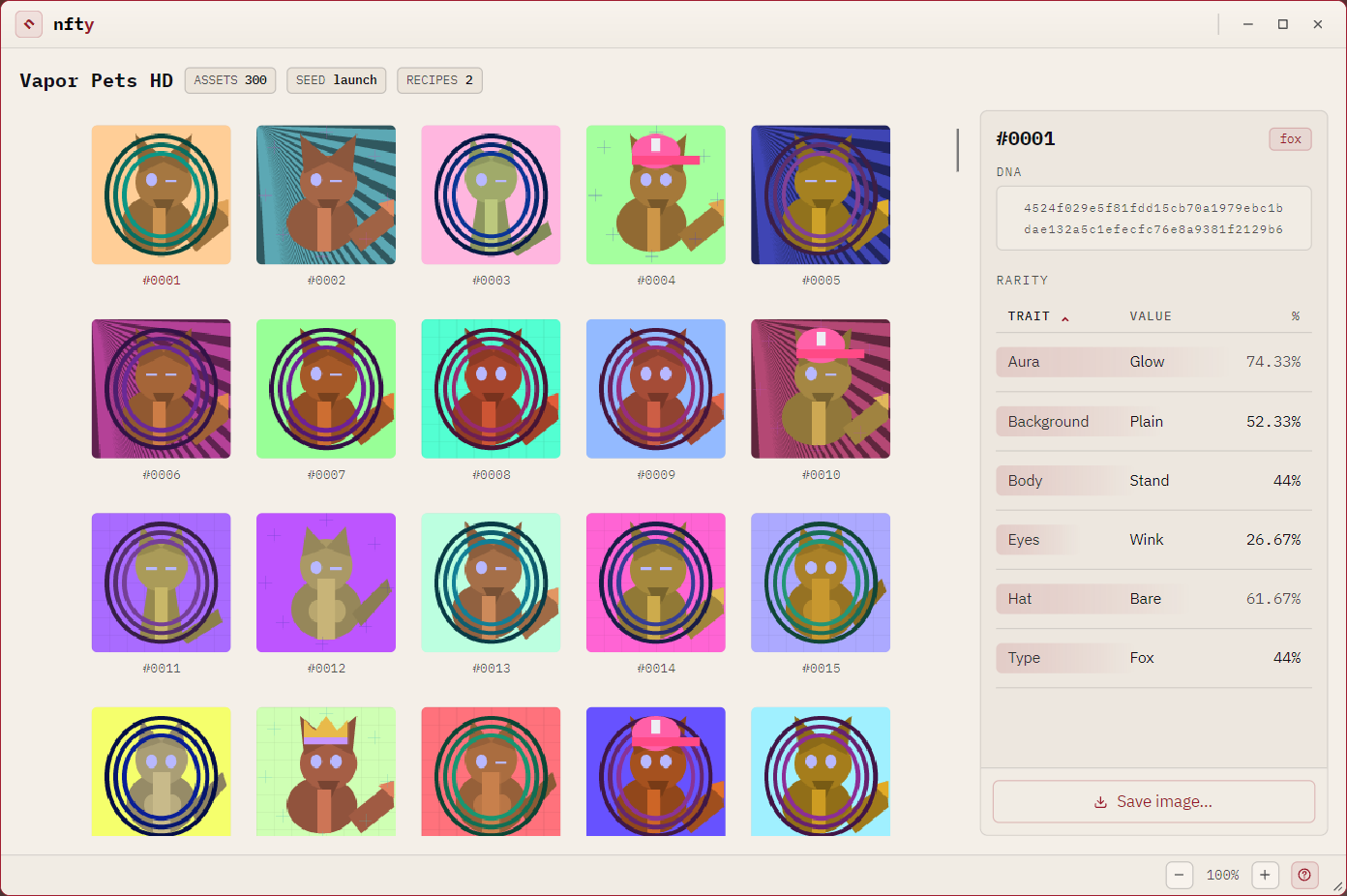
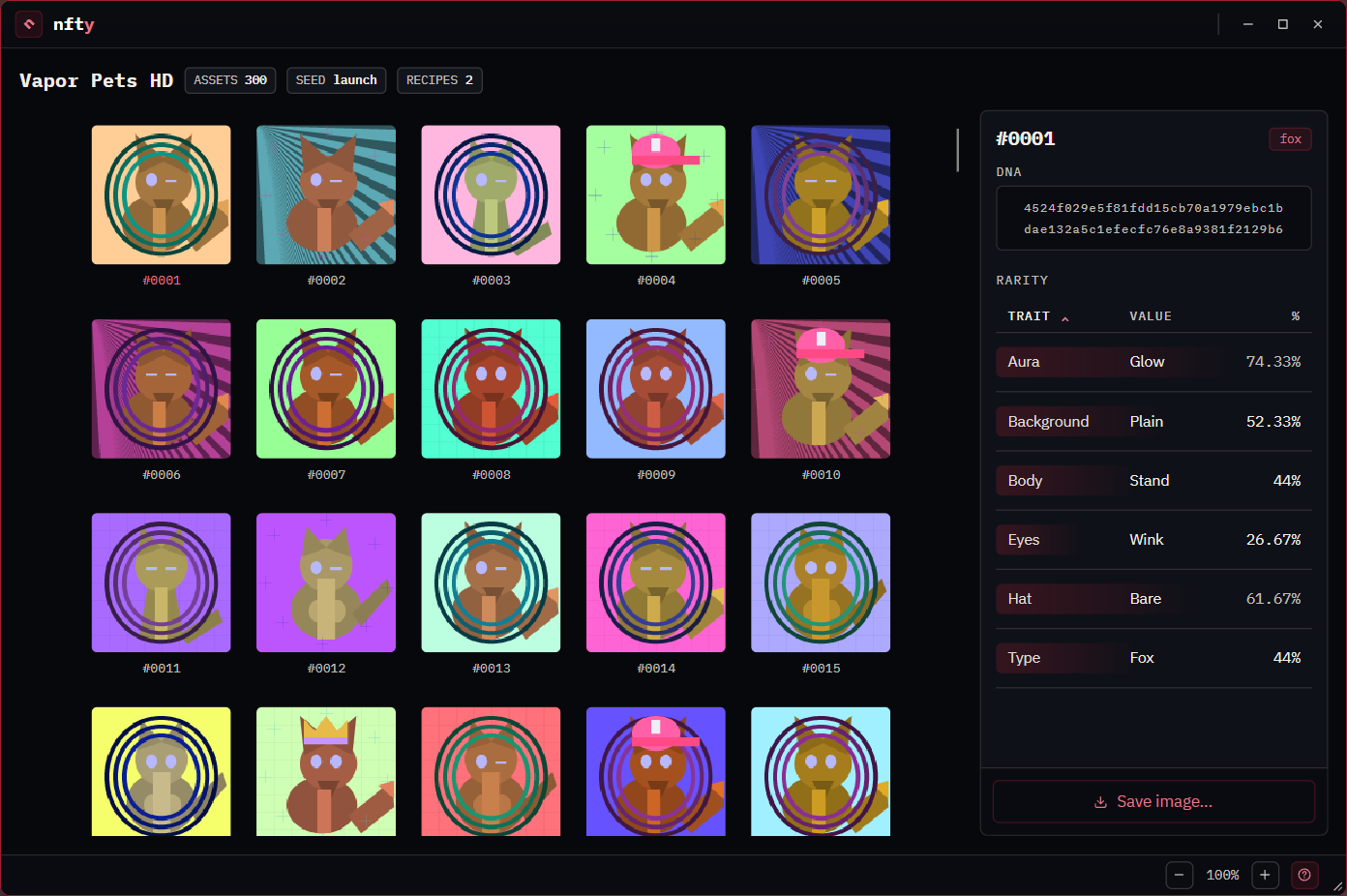
The page
| Part | Shows |
|---|---|
| Header | ASSETS, RECIPES and SEED; a SEALED · view only badge on a .tin; the % / 1 in N toggle; Rise and Export…. |
| Grid | Every asset, in set-number order. A tile whose image file is missing shows a static warning mark. |
| Rail | The asset you are pointing at (or the selected one): its picture, number, DNA, its rarest trait, its combined chance, and the RARITY table of its traits. |
| Save image… | At the foot of the rail: copies the selected asset's PNG somewhere, byte for byte. |
The rail follows the pointer, so you can scan the grid without clicking. Right-click a tile to keep it in the rail without opening it; the line under the picture says whether the rail is showing the selected asset or the one you are hovering.
The % / 1 in N toggle switches every rarity on the page, the table and the combined chance, between
a percentage and odds. The combined chance is exact when nfty can find the CookBook that cooked the
Set (by its hash, among books it already knows and ones beside the Set), and an estimate marked ~
otherwise. See Rarity and weights.
Look closely at one asset
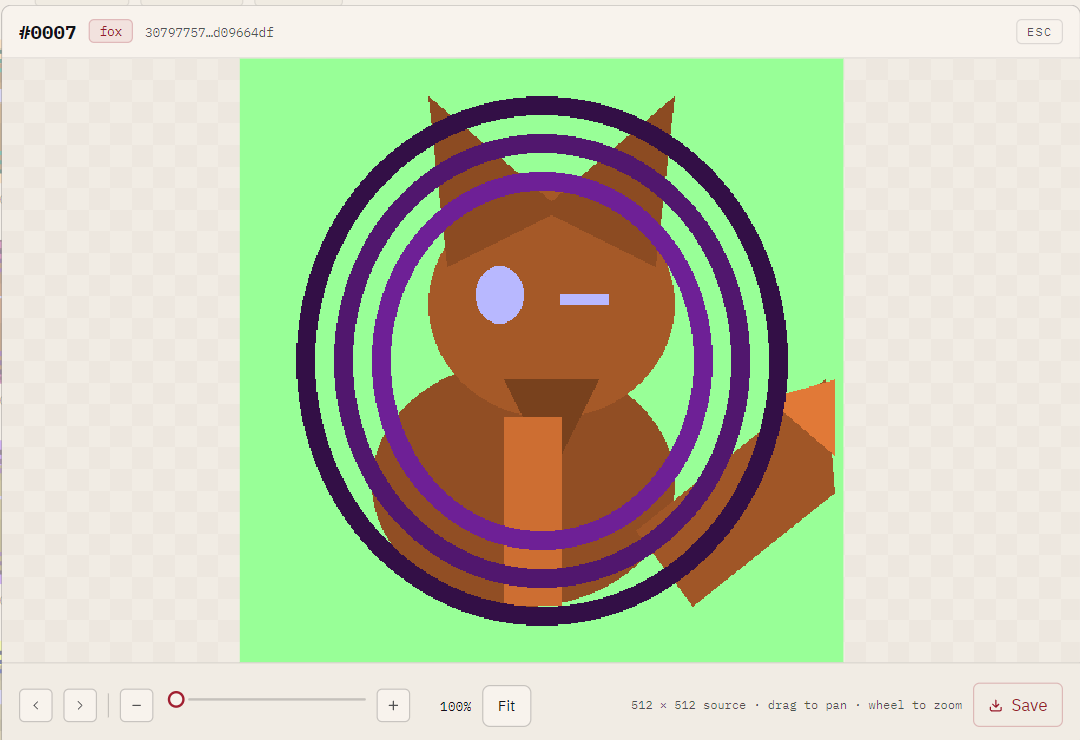
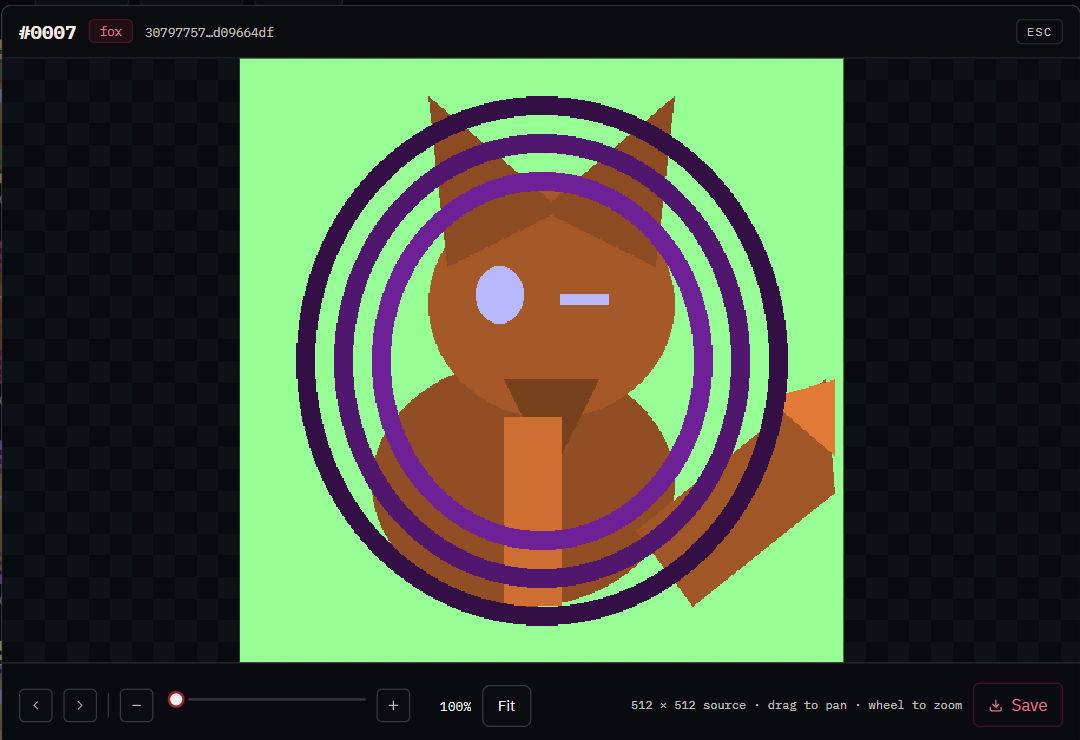
Click a tile to open the inspector: the asset full size over the dimmed browser.
| Do this | To |
|---|---|
| Wheel, + / −, or the slider | Zoom, from fitted to 16× |
| Drag | Pan, once zoomed in. Panning stops at the asset's edges. |
| Double-click | Toggle between 1× and 4× |
| Left / Right, or ‹ › | Previous or next asset; each arrives fitted |
| Fit, or 0 | Back to the whole asset |
| Save | Copy this asset's PNG somewhere |
| Esc | Close |
The ground is a checkerboard so transparency reads honestly, and scaling is always nearest-neighbor. Whatever you last looked at stays selected when you close.
Other things you can do from here
- Export… writes a copy for somebody else: see Export a Set.
- Rise opens the asset in the rail on the Rise page, with the Set's other assets in its list. A Set is read-only there.
- Open in viewer: Ctrl-click or middle-click a tile, or use the inspector's pop-out button. See The viewer.
- Add assets: cook the same book into the same folder; see Add assets to an existing Set.
A sealed Set can be browsed, inspected and risen, but Save image…, Save and Export… are refused. See What sealing does and does not do.