Look closely at a finished asset
Thumbnails tell you a collection is varied. They do not tell you whether one asset's pixels are right. Click any tile in the Set browser and it opens full size.
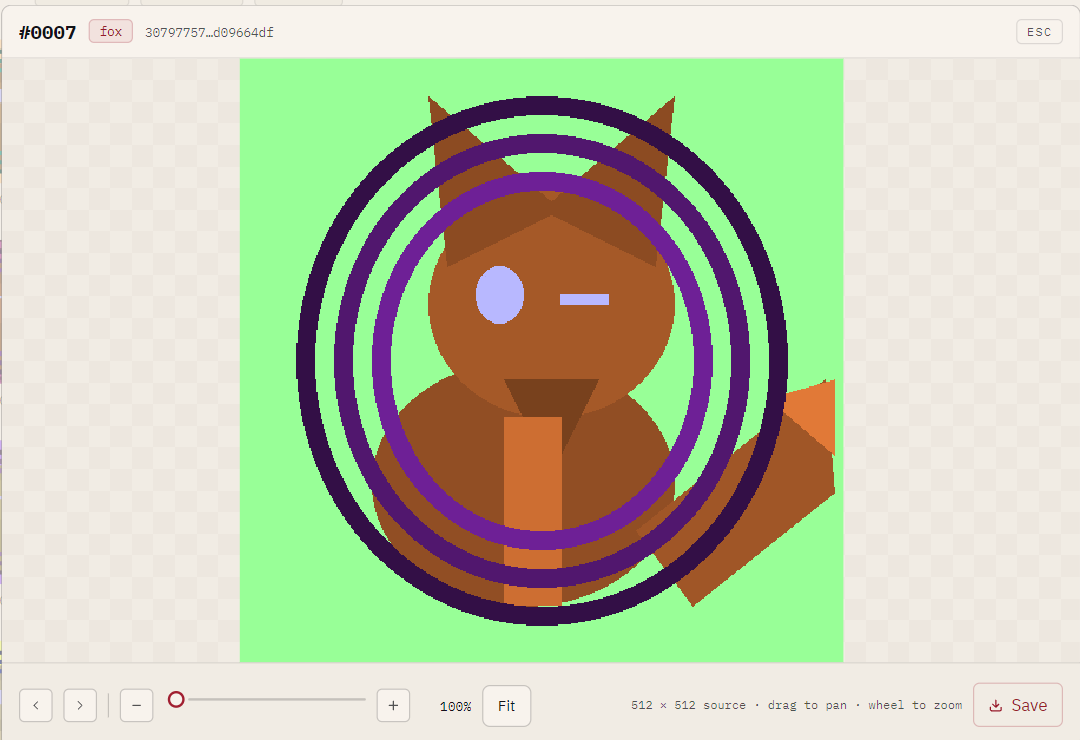
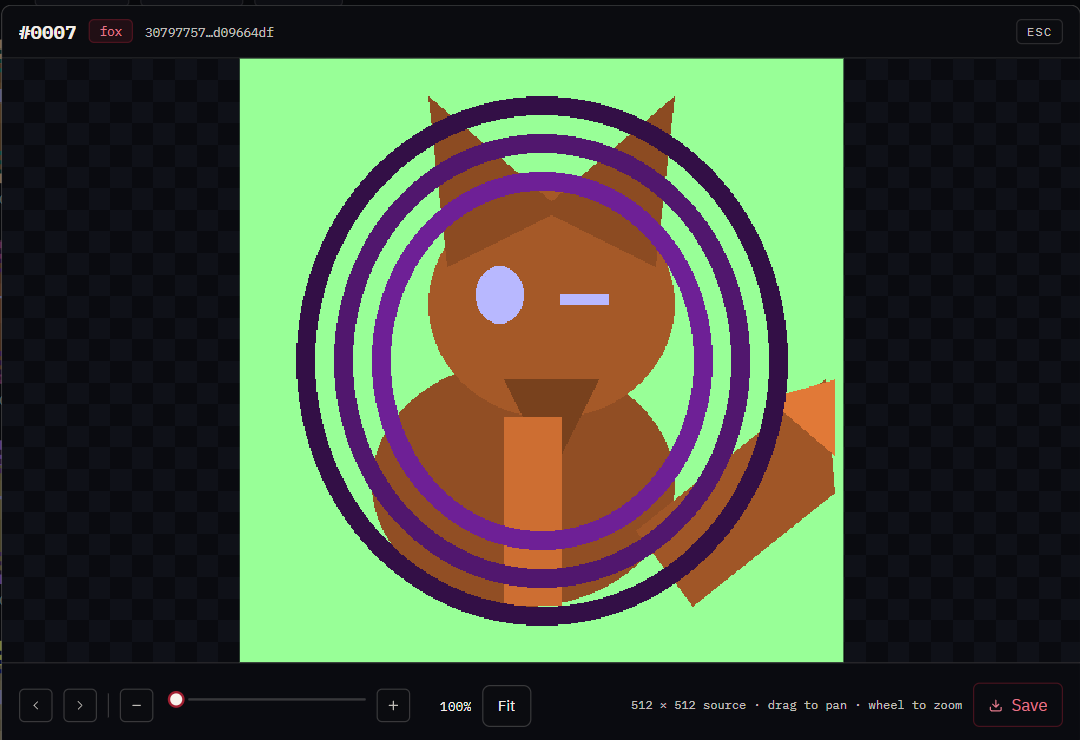
In the inspector
| Do this | To |
|---|---|
| Wheel, or the + / − buttons, or the slider | Zoom, from fitted to 16× |
| Drag | Pan, once you are zoomed in |
| Double-click | Toggle between fitted and a close-up |
| Left / Right, or ‹ › | Step to the previous or next asset |
| Fit, or 0 | Back to the whole asset |
| Save | Write this asset's PNG somewhere |
| Esc | Close |
The ground behind the asset is a checkerboard, so any transparency reads honestly rather than against a flat panel you might mistake for the art. Scaling is nearest-neighbour at every zoom — see Why nfty never resizes your art.
Panning is deliberately bounded
At the fitted size there is nothing outside the view, so dragging does nothing. Zoomed in, the drag stops when the asset's edge reaches the edge of the view: every corner is reachable and nothing beyond it is. An image you can fling off into empty space is easy to lose and annoying to find again.
Stepping is the point
Arrow through the collection without closing the inspector. Each asset arrives fitted, so you are always comparing like with like rather than landing at whatever zoom the last one was left at.
Whatever you last looked at stays selected when you close, so the rail on the right is describing the asset you actually just examined.
Saving
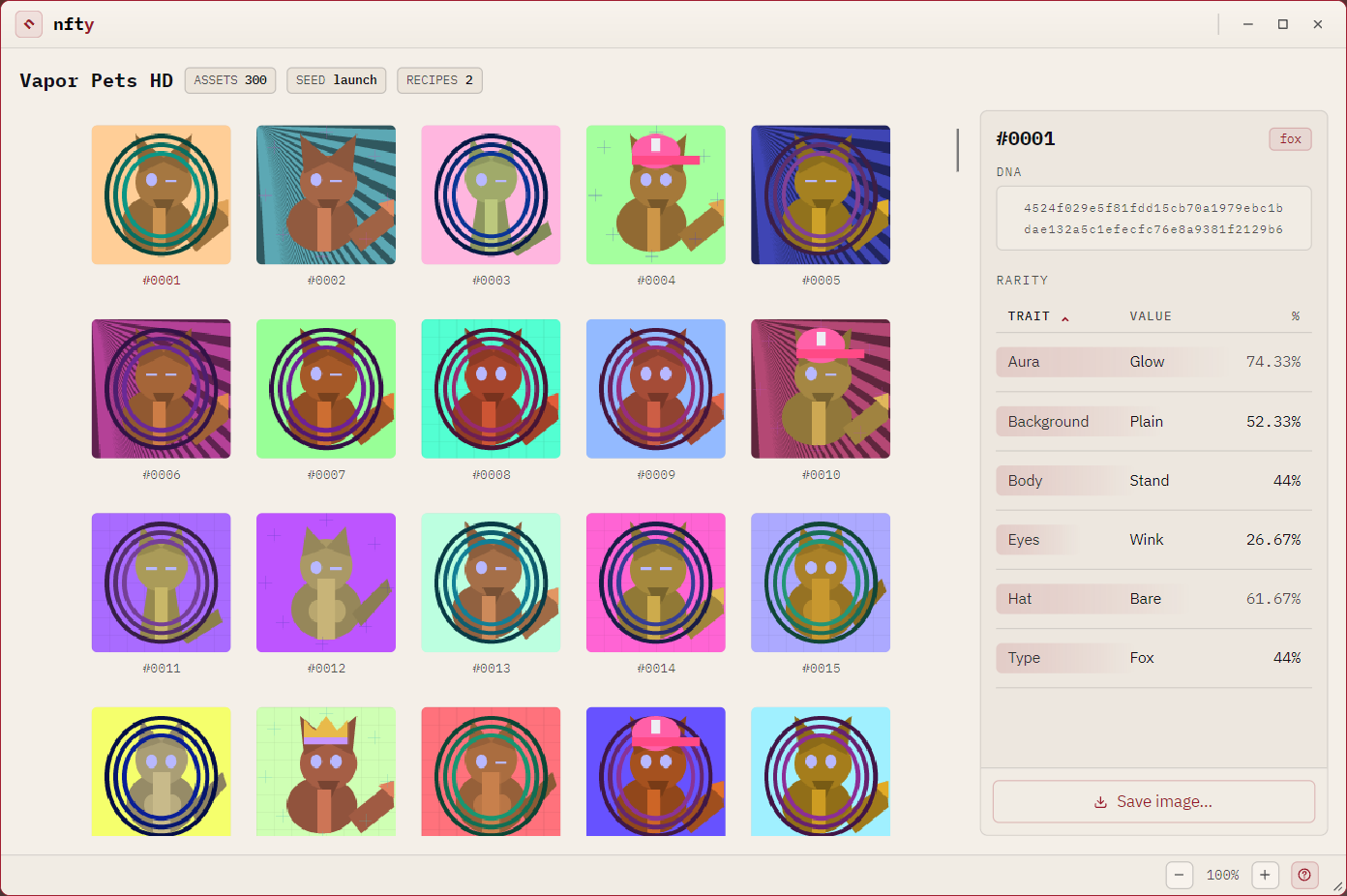
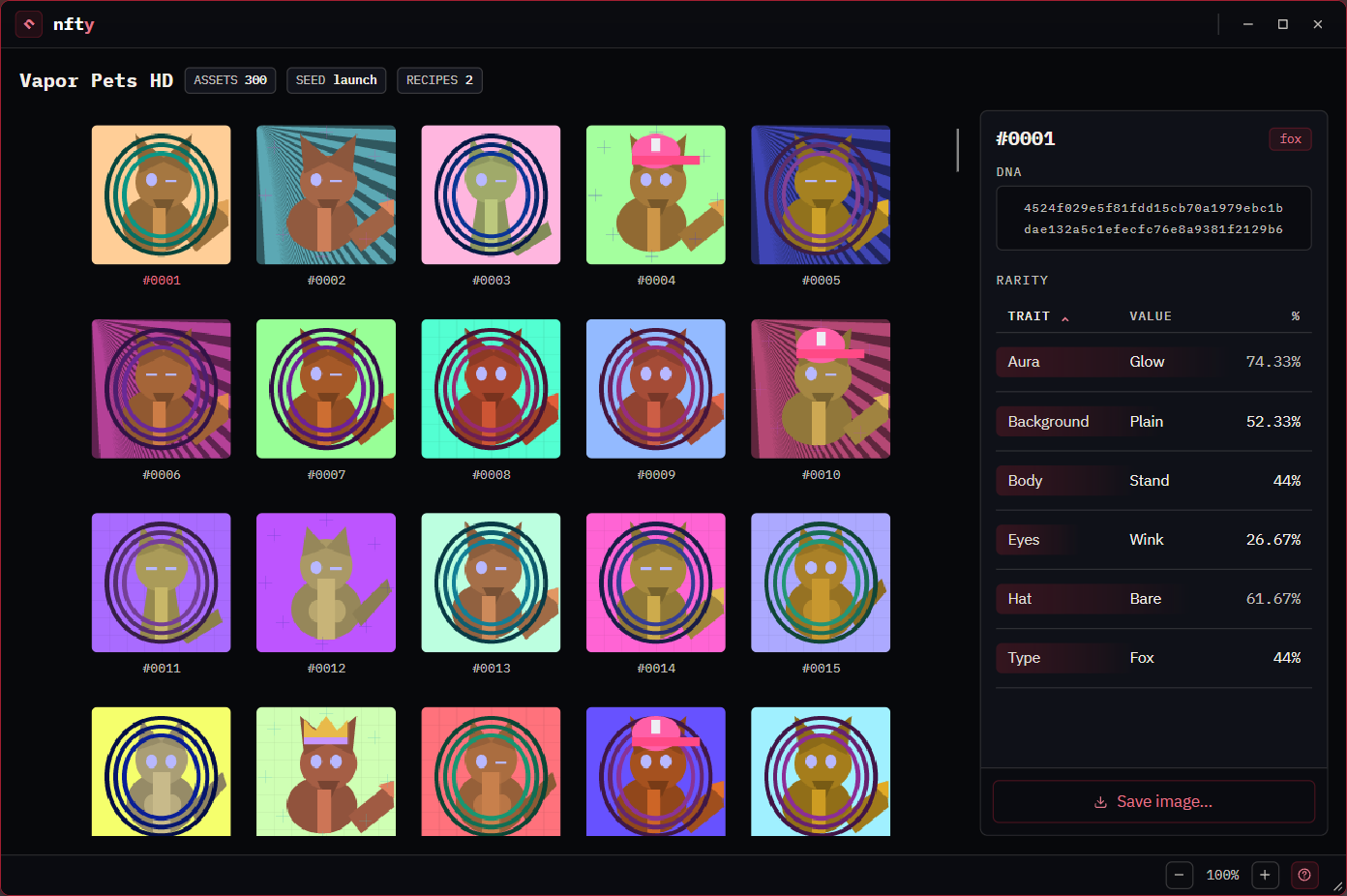
Save in the inspector writes the asset you are looking at. Save image… at the foot of the browser's right-hand rail writes the one currently selected — the button never moves, only what it writes.
Either way the file is copied, not re-encoded, so what lands on your disk is byte-for-byte the image the Set contains.